Hiển thị các bài đăng có nhãn MySQL. Hiển thị tất cả bài đăng

Thứ Tư, 15 tháng 6, 2016

Reset a MySQL root password

1. Linux

Stop the MySQL service
(Ubuntu and Debian) Run the following command:
sudo /etc/init.d/mysql stop
 (CentOS, Fedora, and Red Hat Enterprise Linux) Run the following command:
sudo /etc/init.d/mysqld stop
Start MySQL without a password:
sudo mysqld_safe --skip-grant-tables &
Connect to MySQL:
mysql -uroot
Set a new MySQL root password:
use mysql;
update user set password=PASSWORD("mynewpassword") where User='root';
flush privileges;
quit
Stop and start the MySQL service:
(Ubuntu and Debian) Run the following commands:
sudo /etc/init.d/mysql stop
...
sudo /etc/init.d/mysql start
(CentOS, Fedora, and Red Hat Enterprise Linux) Run the following commands:
sudo /etc/init.d/mysqld stop
...
sudo /etc/init.d/mysqld start
Log in to the database: Test the new password by logging in to the database.
mysql -u root -p
2. Windows (In case if you have Xampp installed.)

  • Goto C:\xampp\mysql\bin
  • Open my.ini file
  • Put skip-grant-tables under [mysqld]
  • Goto windows services, stop and start mysql service
  • Trigger this command from command prompt C:\xampp\mysql\bin\mysql
  • Now, reset the root password with the MySQL query update mysql.user set password=PASSWORD('root') where user='root';
  • Exit the command prompt.
  • Restart the mysql windows service.
  • Now you will be able to login to mysql using password as root.
Others:

0) shut down service mysql56

1) go to C:\ProgramData\MySQL\MySQL Server 5.6, note that ProgramData is a hidden folder

2) looking for file my.ini, open it and add one line skip-grant-tables below [mysqld],save[mysqld] skip-grant-tables


3) start service mysql56

4) by right, you can access the database, run mysql

5) and use the query below to update the passwordupdate mysql.user set password=PASSWORD('NEW PASSWORD') where user='root';


6) shut down the service again, remove the line skip-grant-tables save it, and start the service again. try to use the password you set to login.
Read More

Reset a MySQL root password

1. Linux

Stop the MySQL service
(Ubuntu and Debian) Run the following command:
sudo /etc/init.d/mysql stop
 (CentOS, Fedora, and Red Hat Enterprise Linux) Run the following command:
sudo /etc/init.d/mysqld stop
Start MySQL without a password:
sudo mysqld_safe --skip-grant-tables &
Connect to MySQL:
mysql -uroot
Set a new MySQL root password:
use mysql;
update user set password=PASSWORD("mynewpassword") where User='root';
flush privileges;
quit
Stop and start the MySQL service:
(Ubuntu and Debian) Run the following commands:
sudo /etc/init.d/mysql stop
...
sudo /etc/init.d/mysql start
(CentOS, Fedora, and Red Hat Enterprise Linux) Run the following commands:
sudo /etc/init.d/mysqld stop
...
sudo /etc/init.d/mysqld start
Log in to the database: Test the new password by logging in to the database.
mysql -u root -p
2. Windows (In case if you have Xampp installed.)

  • Goto C:\xampp\mysql\bin
  • Open my.ini file
  • Put skip-grant-tables under [mysqld]
  • Goto windows services, stop and start mysql service
  • Trigger this command from command prompt C:\xampp\mysql\bin\mysql
  • Now, reset the root password with the MySQL query update mysql.user set password=PASSWORD('root') where user='root';
  • Exit the command prompt.
  • Restart the mysql windows service.
  • Now you will be able to login to mysql using password as root.
Others:

0) shut down service mysql56

1) go to C:\ProgramData\MySQL\MySQL Server 5.6, note that ProgramData is a hidden folder

2) looking for file my.ini, open it and add one line skip-grant-tables below [mysqld],save[mysqld] skip-grant-tables


3) start service mysql56

4) by right, you can access the database, run mysql

5) and use the query below to update the passwordupdate mysql.user set password=PASSWORD('NEW PASSWORD') where user='root';


6) shut down the service again, remove the line skip-grant-tables save it, and start the service again. try to use the password you set to login.
Read More

Thứ Sáu, 18 tháng 7, 2014

MySQL Change root Password


How do I change MySQL root password under Linux, FreeBSD, OpenBSD and UNIX?

Method #1: Use mysqladmin command to change root password

If you have never set a root password for MySQL server, the server does not require a password at all for connecting as root.
To setup root password for first time, use mysqladmin command at shell prompt as follows:
$ mysqladmin -u root password NEWPASSWORD
However, if you want to change (or update) a root password, then you need to use the following command:
$ mysqladmin -u root -p'oldpassword' password newpass
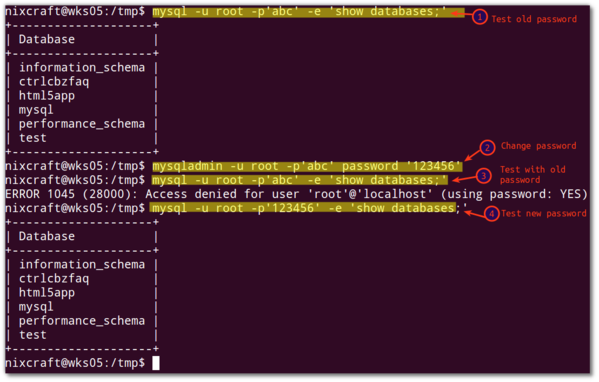
For example, If the old password is abc, you can set the new password to 123456, enter:

$ mysqladmin -u root -p'abc' password '123456'


How do I verify that the new password is working or not?
Use the following mysql command:
$mysql -u root -p'123456' -e 'show databases;'

To change a normal user password you need to type the following command. In this example, change the password for 10tut mysql user:
$ mysqladmin -u 10tut -p'old-password' password new-password

Method #2: Changing MySQL root user password using mysql command


This is an another method. MySQL stores username and passwords in user table inside MySQL database.
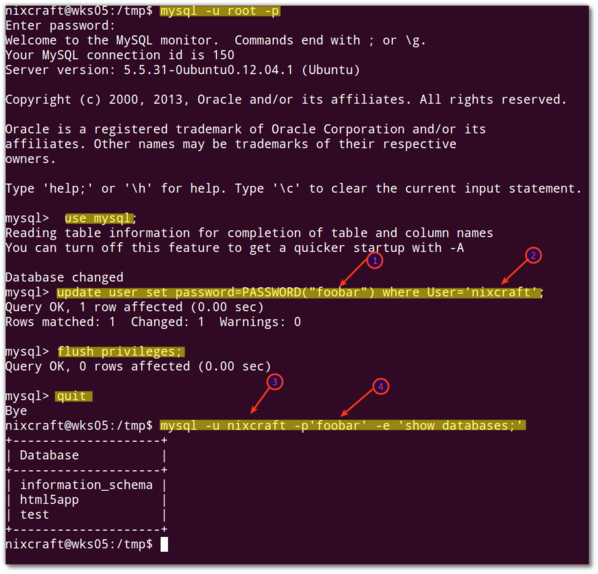
You can directly update or change the password using the following method for user called nixcraft:
Login to mysql server, type the following command at shell prompt:
$ mysql -u root -p

Use mysql database (type command at mysql> prompt):

mysql> use mysql;

Change password for user nixcraft, enter:

mysql> update user set password=PASSWORD("NEWPASSWORD") where User='nixcraft';

Finally, reload the privileges:

mysql> flush privileges;
mysql> quit

Sample live session from my home server


Source: http://www.cyberciti.biz/faq/mysql-change-root-password/

Read More

Thứ Hai, 19 tháng 5, 2014

Check how much memory your PHP script is using

Check how much memory your PHP script is using?


The answer is the memory_get_peak_usage() function.

At the end of your PHP script (footer script for a PHP site, you get the idea), put this line:
echo memory_get_peak_usage();
Or you can write the data down in a text file:
file_put_contents('mu.txt', memory_get_peak_usage());
The output is in bytes.More friendly output,Add to the footer of the templates:
<?php
function convert($size) {
   $unit=array('b','kb','mb','gb','tb','pb');
   return @round($size/pow(1024,($i=floor(log($size,1024)))),2).' '.$unit[$i];
}
echo convert(memory_get_peak_usage(true));
?>
Read More

Chủ Nhật, 18 tháng 5, 2014

Mysql change the default character set and collation of a table

Mysql change the default character set and collation of a table

To change the default character set and collation of a table including those of existing columns (note the convert to clause):
alter table convert to character set utf8 collate utf8_general_ci;

Note: You can't alter multiple tables at once in mysql, just write a query file to alter all tables and execute that file.
Read More

Thứ Năm, 27 tháng 3, 2014

Calculating Maximum Connections for MySQL Server

Calculating Maximum Connections for MySQL Server


Backup your my.cnf file

The my.cnf file is the MySQL configuration file that needs to be modified to optimize the performance of MySQL database servers. Make sure you always backup a copy of this very important configuration before changing it.

Determine the advisable value for max_connections

How high should we set max_connections? Well, it depends on how much memory (RAM) do you have on the server.
You might want to use the formula to come up with the value we are looking for.
max_connections = (Available RAM - Global buffers) / Thread buffers

But before that, we need to know the values of the variables on our right side - available RAM, global buffers, and thread buffers.

Determine the Available RAM

To determine the Available RAM, issue the following command.
free -tb
Here's the result of the command in my case:
The number in red is the available memory measured in bytes.

Determine the Global and Thread Buffers

In a mysql console, issue the following statement:
SHOW VARIABLES LIKE '%buffer%';
The following are considered global buffers:
key_buffer_size
innodb_buffer_pool
innodb_log_buffer
innodb_additional_mem_pool
net_buffer_size
The following are considered thread specific buffers:
sort_buffer_size
myisam_sort_buffer_size
read_buffer_size
join_buffer_size
read_rnd_buffer_size

Read More

Thứ Hai, 24 tháng 3, 2014

Change MySQL Table Prefix Tools

Change MySQL Table Prefix Tools

Description

This script makes it possible for you to change table prefix for MySql databases.

Features


  • Add prefix to unprefixed tables
  • Rename/change prefix
  • Remove prefix
This is a quick modification of another script found at the below address.
http://www.nilpo.com/2009/01/web-development/mysql-table-prefix-changer-tool/.

Download
Change MySQL Table Prefix Tools

Read More

Thứ Bảy, 22 tháng 3, 2014

Backup and Restore a single table using mysqldump

Backup and Restore a single table using mysqldump

Backup a single table from a database
mysqldump -u -p database_one table_name1 table_name2 table_name3 > /var/www/backups/table_name.sql

Restore the table into another database
mysql -u -p database_two < /var/www/backups/table_name.sql
You can dump a query as csv like this:

SELECT * from myTable
INTO OUTFILE '/tmp/querydump.csv'
FIELDS TERMINATED BY ','
ENCLOSED BY '"'
LINES TERMINATED BY '\n'
Read More

Chủ Nhật, 16 tháng 3, 2014

[Step by step]Create a MySQL Database, Username, Password, and Privileges from the command line

Create a MySQL Database, Username, Password, and Privileges from the command line

Step 1: Login to MySQL ( you will need an account )

user@server:~$ mysql -u mysql_user -p
Enter password:

Step 2: Create the Database

mysql > create database db_name;

Step 3: Verify that it’s there

mysql > show databases;

Step 4: Create the User

mysql > create user db_user;

Step 5: Grant privileges while assigning the password

mysql > grant all on db_name.* to 'db_user'@'localhost' identified by 'db_password';
*Note: The localhost field usually doesn’t have to be edited, but you can set it to the specific address.

The above example grants all privileges, obviously. But you will likely want to limit privileges under many circumstances. These parameters include select, insert, and delete.
Choose all that apply and separate by comma, thusly:
mysql > grant select, insert, delete on db_name.* to 'db_user'@'localhost' identified by 'db_password';
Read More

Thứ Năm, 6 tháng 3, 2014

How to change Mysql data directory location?

How to change Mysql data directory location?

Mysql is most famous open source RDBMS (Relational database management system) software used by millions of websites.
Most of website with very large Mysql database experience storage problem because /var partition is to small which holds Mysql data files and folder by default.
If you are experiencing such a problem then you have to move your Mysql data directory to other linux partition (eg: /home).
To change your directory without affecting Mysql configuration. Follow these steps.

Note: before changing Mysql data directory please backup all your database

mysqldump --all-databases | gzip > /home/alldatabases.sql.gz

  • First stop Mysql service
/etc/init.d/mysqld stop
  • create a folder 'mysql' in /home partition
  • copy whole Mysql data directory to 'mysql' in preserve mode
cp –pr /var/lib/mysql/ /home/mysql

-p means preserve the specified attributes (default: mode, ownership, timestamps)

-r means copy each directory sub-directory and files

  • then create a symbolic link from new data directory to old data directory
ln -s /home/mysql/ /var/lib/mysql/

  • Now start Mysql service
/etc/init.d/mysqld start
  • If its working properly then delete each file and folder from old data directory
cd /var/lib/mysql rm –rf  *
Read More

Chủ Nhật, 5 tháng 5, 2013

Change the collation on a MySQL database via PhpMyAdmin

 Change the collation on a MySQL database via PhpMyAdmin

MySQL supports different types of collation and characters sets. The following article will walk you through how to change the collation for one table or the entire database. 


Change collation for the entire database
  1. Connect to the database using phpMyAdmin
  2. Select your database and click on Operations from the top menu 
  3. On the drop down menu under collation select the character or collation that you intend to use for the database. 
  4. Click on Go and the change is effected for the entire database
Change the collation for one table
  1. Connect to the database using phpMyAdmin
  2. Select your database
  3. Select your table and click on operations from the top menu.
  4. Under the Table options menu select the collation/character for the table
  5. Click on Go to make the change for the table


Read More