Hiển thị các bài đăng có nhãn Windows Server. Hiển thị tất cả bài đăng

Chủ Nhật, 11 tháng 9, 2016

Windows Server: How to get the list of shutdown event

To get a list of shutdown event with date and time, we can take use of Event Viewer to filter Event ID: 41,1074,1076,6006 in System Event log

1. Open Event Viewer with Eventvwr.exe
2. Navigate to Windows Logs\System
3. Right-Click on it and select "Filter Current Log…"
4. Filter: Event log: System Event ID: 41,1074,1076,6006
5. When you filter them, you can track down its shutdown type, date and time, and who has shutdown it.

We can create custom view for quickly get a list as below:


Read More

Thứ Tư, 9 tháng 4, 2014

QwertyLab Tool Run As System

QwertyLab Tool Run As System


It is a simple tool that enables you to start a program or run command and script under a local system account. Requires administrative privileges on the PC. This tool is fully compatible with Vista UAC .
For example, to launch an interactive command prompt as a system account simply type 'cmd'.
To run batch file use 'cmd /c [filepath]' command.
System Requirements:

   Windows 2000/XP/Vista, Windows Server 2000-2008;

Download 
Download RunAsSystem 1.0 zip archive
Size 123 Kb
Date 4/1/2009

Read More

Thứ Tư, 8 tháng 5, 2013

Chuyển Database SQL Server sang máy khác (Backup and Restore MSSQL)

Chuyển Database SQL Server sang máy khác (Backup and Restore MSSQL)

Lưu ý : Các cách sau đây đều sử dụng SQL Server Management Studio

Cách 1: đơn giản nhất là Backup từ máy mình rồi Restore lại khi sang máy khác.

Click chuột phải vào Database rồi chọn Tasks >> Backup


Ở máy kia, tạo một Database mới sau đó click chuột phải vào Database mới đó chọn Tasks >> Restore >> Database


Nhấn vào From device và Add đường dẫn đến file backup


Click chọn tên file vừa Add và nhấn OK


Cách 2: Generate Script Database

Click chuột phải vào Database chọn Tasks >> Generate Scripts


 Nhấn Next cho đến bước Set Scripting Options, Nếu bạn chỉ muốn sao chép cấu trúc Database (gồm các Table, SP, Function, ..) mà không gồm dữ liệu trong các Table thì tiếp tục nhấn Next, nếu muốn sao chép cả dữ liệu thì Click vào Advanced


Trong Option Types of data  to script chọn Schema and data


Sau đó bạn sẽ được 1 file dạng .sql, mang file này sang máy khác chỉ cần kéo file vào SQL Server Management Studio và nhấn Execute để tạo Database.


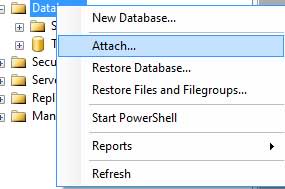
 Cách 3: Copy file Database .mdf rồi Attach lại ở máy khác


Trong 3 cách trên, tôi thường dùng cách 2 nhất, do nếu bạn dùng các phiên bản SQL Server không đồng nhất ở các máy thì cũng không bị lỗi, cách 1 và 3 nếu SQL Server ở máy tạo Database có phiên bản cao hơn máy khác thì khi add vào sẽ không được. Cách 1 thường được dùng nếu bạn lập trình Web do trên Hosting bạn chỉ có thể chọn Restore. 

Read More

Chủ Nhật, 14 tháng 4, 2013

How to Rename .MDF File and .LDF file

Some time in project lifecycle will definitely required to rename .MDF file , Mostly during deployment at various stages.
Lets see how we can achieve same !!
For example we have Audit Test as database in our server as shown

It have MDF file and LDF file as shown in following drives @ physical location

Fire a following query first
ALTER DATABASE AuditTest SET OFFLINE
It will make off the Database as shown


Now till the time your database is off we have to go manually and make rename option to both MDF and LDF file

But we have register this or make SQL server aware of this event so now type alter script execute the following script in SSMS
GO
ALTER DATABASE AuditTest
MODIFY FILE (NAME =AuditTest,
FILENAME =
'C:\Program Files\Microsoft SQL Server\
MSSQL10_50.MSSQLSERVER\MSSQL\DATA\RenameAudit.mdf')

GO

ALTER DATABASE AuditTest
MODIFY FILE (NAME = AuditTest_log,
FILENAME ='C:\Program Files\Microsoft SQL Server\
MSSQL10_50.MSSQLSERVER\MSSQL\DATA\RenameAudit.ldf')

GO
And set our Database on again for its usability
ALTER DATABASE AuditTest SET ONLINE
GO

So Output of all above script is shown

Hope this helps !!
Read More